
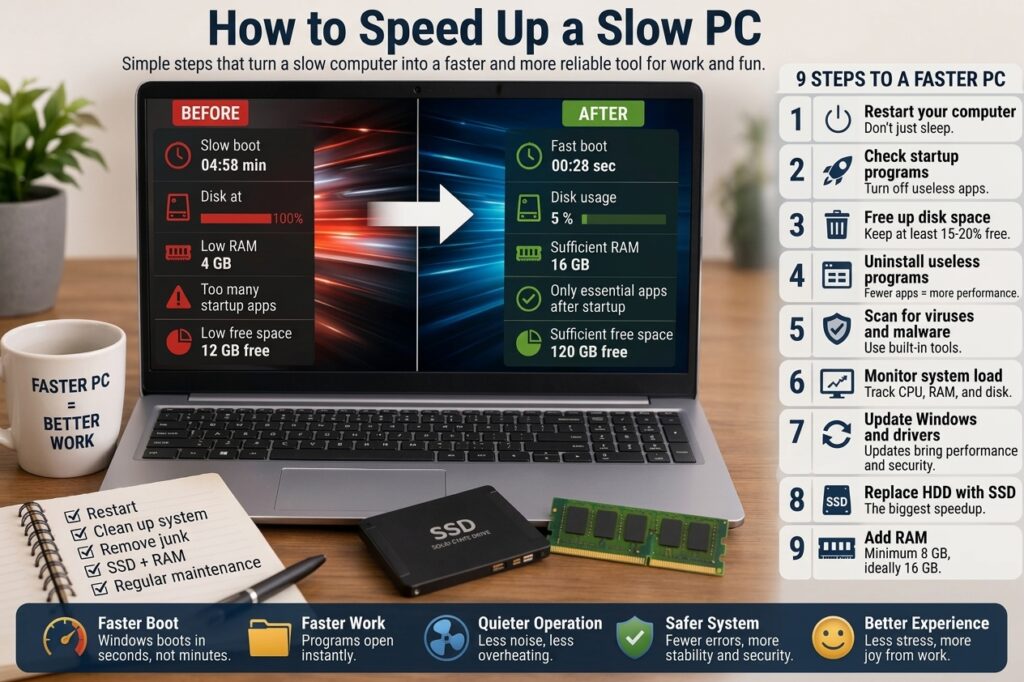
How to Speed Up a Slow Computer
A slow computer usually does not become slow overnight. It starts with small things: Windows takes longer to start, the browser freezes with five tabs open, apps take ages to launch, and the fan runs even when you are doing nothing.
In practice, most slow computers I see are not “broken”. They are overloaded, poorly maintained, running on old hardware, or filled with background software that quietly eats performance.
Why a Computer Becomes Slow
A computer slows down when one or more key resources are under pressure. The most common ones are RAM, storage, CPU, and sometimes temperature.
Here are the usual causes:
- Too many startup programs loading every time the computer turns on.
- Low disk space, especially on the system drive.
- Old hard drive instead of an SSD.
- Not enough RAM for modern apps and browsers.
- Malware or unwanted software running in the background.
- Outdated system or drivers causing poor performance.
- Overheating, often caused by dust inside the computer.
The important thing is to avoid guessing. A good technician first checks what is actually causing the slowdown, then fixes that specific issue.
Step-by-Step: How to Speed Up Your Computer
1. Restart the Computer Properly
This sounds basic, but it matters. Many users only close the laptop lid or use sleep mode for weeks. That leaves temporary processes and memory issues hanging around.
Do this first:
- Save your work.
- Click Restart, not Shut down.
- After restart, wait 2–3 minutes before opening apps.
If the computer is suddenly better after a restart, the problem is likely related to background processes, memory usage, or software that does not close correctly.
2. Check What Is Using Your Resources
On Windows, press Ctrl + Shift + Esc to open Task Manager. Go to the Processes tab and look at:
- CPU usage
- Memory usage
- Disk usage
If Disk is constantly at 100%, the computer will feel painfully slow. This often happens on older laptops with mechanical hard drives.
If Memory is above 80–90% while doing normal work, the computer needs fewer background apps or more RAM.
3. Disable Unnecessary Startup Programs
Many programs add themselves to startup without asking clearly. Printer tools, cloud apps, chat apps, update helpers, game launchers, and vendor utilities often start automatically.
To disable them:
- Open Task Manager.
- Go to Startup apps.
- Disable anything you do not need immediately after login.
Safe examples to disable for most users:
- Game launchers like Steam or Epic Games
- Adobe update helpers
- Spotify
- Teams or Zoom if you do not use them daily
- Printer management tools
Do not disable security software unless you know exactly what you are doing.
4. Free Up Disk Space
A nearly full system drive can slow everything down. Windows needs free space for updates, temporary files, paging memory, and normal operation.
Try to keep at least 15–20% of your system drive free.
Steps to clean up space:
- Open Settings.
- Go to System → Storage.
- Use Temporary files cleanup.
- Empty the Recycle Bin.
- Uninstall programs you no longer use.
Also check large folders like:
- Downloads
- Desktop
- Videos
- Documents
In real life, I often find 30–80 GB of old installers, duplicate videos, and forgotten ZIP files in the Downloads folder alone.
5. Uninstall Unused Software
Old software can leave services, scheduled tasks, and background processes behind. Even if you do not open the program, parts of it may still run.
Go to:
- Settings → Apps → Installed apps
Remove software you recognize and no longer need. Be careful with drivers, Microsoft components, or anything you do not understand. If unsure, search the program name before uninstalling it.
6. Scan for Malware and Unwanted Apps
Malware does not always show obvious pop-ups. Sometimes it just runs quietly, uses CPU, changes browser settings, or adds strange extensions.
Use Windows Security first:
- Open Windows Security.
- Go to Virus & threat protection.
- Run a Full scan.
Also check your browser extensions. Remove anything you do not use or do not remember installing. Suspicious extensions often cause slow browsing, redirects, and high CPU usage.
7. Update Windows and Drivers
Updates are not only about new features. They often fix performance bugs, hardware compatibility issues, and security problems.
Go to:
- Settings → Windows Update
- Install available updates.
- Restart the computer when requested.
For graphics drivers, especially on gaming PCs or workstations, download drivers directly from NVIDIA, AMD, or Intel. Bad or outdated graphics drivers can make the system feel laggy even outside games.
8. Check the Health of Your Drive
If your computer has an old hard drive, it may be physically wearing out. A failing disk can cause freezing, slow startup, clicking noises, and corrupted files.
Warning signs include:
- Windows takes very long to boot.
- Programs freeze randomly.
- File copying is extremely slow.
- The computer becomes unusable when updates are installing.
- Task Manager shows Disk 100% often.
If the computer still uses an HDD, the best upgrade is usually replacing it with an SSD. This is one of the most noticeable improvements you can make.
9. Add More RAM If Needed
Modern browsing uses a lot of memory. Ten browser tabs, email, Teams, antivirus, and cloud sync can easily use more than 8 GB of RAM.
General recommendation:
- 4 GB RAM: too little for modern Windows use.
- 8 GB RAM: acceptable for basic work.
- 16 GB RAM: comfortable for office work, browsing, video calls, and multitasking.
- 32 GB RAM: useful for heavy work like video editing, virtual machines, or large design files.
If Task Manager often shows memory usage above 85%, adding RAM can help a lot.
10. Clean Dust and Check Cooling
When a computer overheats, it slows itself down to avoid damage. This is called thermal throttling.
Common signs:
- The fan is loud most of the time.
- The laptop gets very hot underneath.
- Performance drops after 10–20 minutes of use.
- The computer shuts down unexpectedly.
For a desktop PC, cleaning dust from fans and heatsinks is usually simple. For laptops, it may require opening the device. If you are not comfortable doing that, let a technician handle it.
Real-Life Example
A customer brought in a five-year-old laptop and said it was “ready for the trash”. It took almost six minutes to reach the desktop, and opening Chrome felt like waiting for an old printer to warm up.
After checking it, the main problems were clear:
- The laptop had a slow mechanical hard drive.
- Only 4 GB of RAM was installed.
- Several startup apps were loading automatically.
- The system drive had less than 5 GB free.
The fix was not complicated:
- Replaced the hard drive with a 500 GB SSD.
- Upgraded RAM from 4 GB to 8 GB.
- Removed unnecessary startup apps.
- Cleaned temporary files and old downloads.
After that, startup time dropped from several minutes to under 30 seconds. The owner did not need a new laptop. The old one just needed the right upgrades.
Common Mistakes That Make a Computer Slower
- Installing multiple antivirus programs: they can conflict and slow the system badly.
- Using “PC booster” tools: many of them do little useful work and add more background processes.
- Ignoring low disk space: a full drive causes updates, apps, and Windows itself to struggle.
- Keeping everything on the desktop: thousands of desktop files can slow login and file indexing.
- Never restarting: sleep mode is useful, but it is not a replacement for a proper restart.
- Buying more RAM without checking the real cause: if the disk is failing, RAM will not fix it.
Extra Practical Tips
- Use an SSD if you still have a hard drive. This is usually the best performance upgrade.
- Keep browser tabs under control. Browsers can use more memory than many desktop apps.
- Remove browser extensions you do not actively use.
- Restart once or twice a week, especially if you use sleep mode often.
- Keep at least 20 GB free on the Windows drive if possible.
- Back up important files before doing major cleanup or upgrades.
- Do not ignore strange noises from a hard drive. Back up data immediately.
Summary
To speed up a slow computer, start with the basics: restart it, check Task Manager, disable unnecessary startup apps, free up disk space, and scan for malware.
If the computer is still slow, look at the hardware. In many cases, replacing an old hard drive with an SSD and increasing RAM gives the biggest improvement.
The best approach is simple: identify what is overloaded, fix that problem, and avoid installing random “speed booster” tools. A slow computer often does not need replacing. It needs proper cleanup, maintenance, or one smart upgrade.
FAQ
Why is my computer slow after startup?
Usually because too many programs start automatically. Open Task Manager, check Startup apps, and disable anything you do not need immediately.
Will adding more RAM make my computer faster?
Only if memory is the problem. If RAM usage is often above 85%, more RAM helps. If Disk is at 100%, an SSD may help more.
Is it worth upgrading an old computer?
Yes, if the processor is still usable and the device is in good condition. An SSD upgrade and more RAM can make many older computers feel much faster.